 Synthera Docs
Before You Begin
⦁ Complete all instructions in Setup & Installation.
⦁ Make sure Apex Legends is closed before launching the loader.
⦁ Download the loader from Loader Download.
⦁ Save the loader in a local folder on your PC so you can find it again. Do not run it from OneDrive, MEGA, or another cloud-synced folder.
Note
On first launch, the loader may download an update, close, and randomize its file name. If this happens, reopen the updated file from the same folder.
Configure a Supported Overlay
You must start a supported overlay before injecting the product.
NVIDIA Graphics Cards
You can use either the NVIDIA app overlay or SteelSeries GG.
To enable the NVIDIA app overlay:
⦁ Open the NVIDIA app.
⦁ Open Settings.
⦁ Go to General.
⦁ Enable In-Game Overlay.
Note
GeForce Experience does not support this product in fullscreen mode. Use the current NVIDIA app or SteelSeries GG instead.
AMD Graphics Cards
AMD graphics cards require SteelSeries GG.
To configure SteelSeries Sonar:
⦁ Open SteelSeries GG.
⦁ Go to Settings → General and enable Sonar.
⦁ Open Sonar → Shortcuts.
⦁ Assign F7 to Master — Volume Up.
⦁ Press the assigned F7 shortcut before injection so the overlay is active.
Note
The main product documentation states that SteelSeries supports fullscreen mode for AMD systems. The generic GitBook instruction to use Borderless Fullscreen was not applied because the main product documentation has priority.
Launch and Inject
⦁ Make sure all antivirus protection is disabled.
⦁ Start your selected overlay.
⦁ If you use SteelSeries Sonar, press the configured F7 shortcut before injection.
⦁ Launch the loader.
⦁ If the loader updates and closes, reopen the updated file.
⦁ Enter your product license. You can find the key under Deliverables in your invoice.
⦁ Click Inject.
⦁ Wait for the loader to close automatically.
⦁ Launch Apex Legends.
⦁ Allow up to two minutes for the menu to initialize.
Note
On the first launch, your PC may restart. A “You’re about to be signed out” message means the loader changed required security settings and Windows must restart before those changes take effect.
Open the Menu
Press Insert to show or hide the menu.
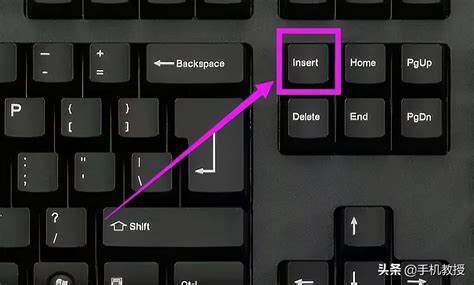
If your keyboard does not have an Insert key, use the Remap Insert Key guide.