 Synthera Docs
Remove the Windows Hello PIN requirement and run the supplied Hyper-V tool.
⦁ Open Windows Search.
⦁ Search for and open Sign-in options.
⦁ Under Additional settings, disable For improved security, only allow Windows Hello sign-in for Microsoft accounts on this device.
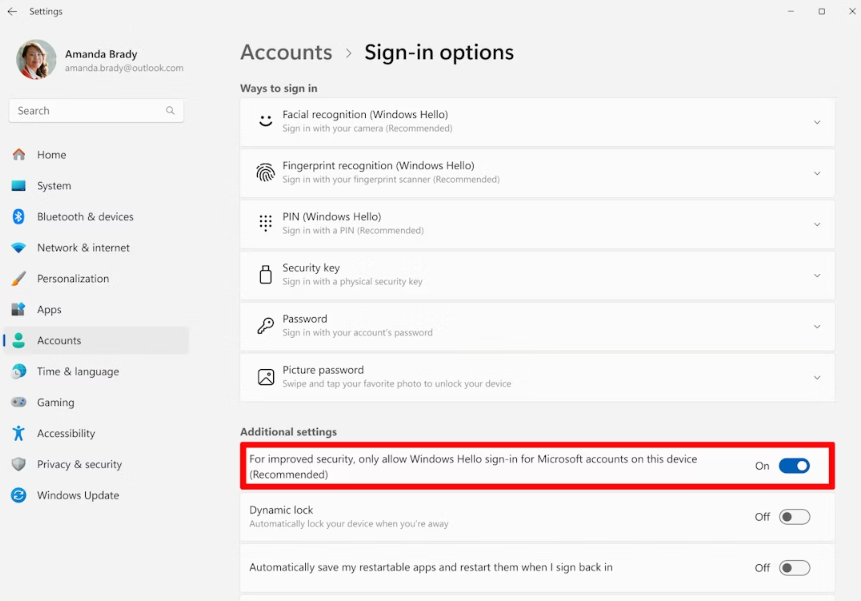
⦁ Open PIN (Windows Hello).
⦁ If a PIN is set, remove it and make sure a password is configured for the account.
⦁ Download and run the supplied PIN and Hyper-V fix.
⦁ The file will automatically restart the PC after approximately 10 seconds.
Warning
The supplied executable changes Windows security settings and automatically restarts the PC. Save all open work before running it, and use it only if it came from the trusted product provider.