 Synthera Docs
Turn off any virtual disk.
Disable RAID in BIOS.
Disable Intel Rapid Storage Technology (RST), if available.
If the problem continues, locate drivers or services whose names begin with
iaStorusing DriverView or ProcessHacker and disable the relevant service.If the issue still remains, reinstall Windows.
Advanced Fix
If Windows was installed using RAID/IRST, follow the RAID/IRST to AHCI guide.
If RAID/IRST is already disabled but iaStor drivers or services remain, use DriverView or ProcessHacker to locate them.
If an Intel SATA AHCI driver is still active:
Open Device Manager.
Expand IDE ATA/ATAPI controllers.
Right-click the listed Intel SATA AHCI Controller and select Update driver.
Select Browse my computer for drivers.
Select Let me pick from a list of available drivers on my computer.
Select Standard SATA AHCI Controller.
Continue the installation.
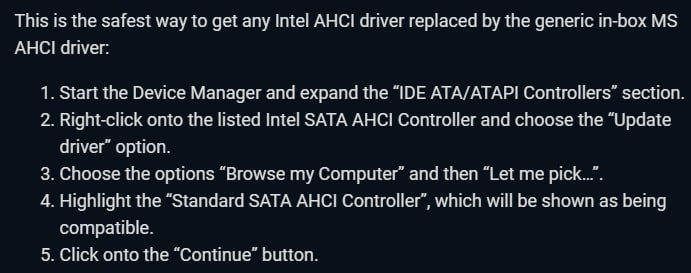
If this does not help, follow the steps in the image below:
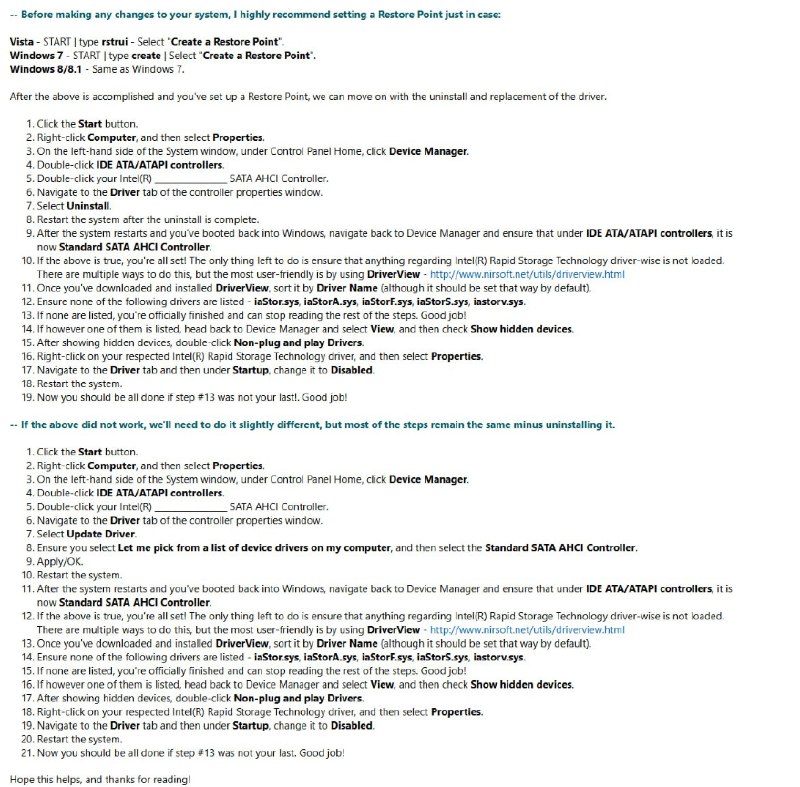
Before performing the extended driver-removal procedure, create a Windows Restore Point.
After changing the controller, verify in Device Manager that Standard SATA AHCI Controller is active.
You can also use DriverView to check that the following drivers are no longer loaded:
iaStor.sysiaStorA.sysiaStorF.sysiaStorS.sysiaStorV.sys
If one of these drivers remains, enable Show hidden devices in Device Manager, locate the corresponding Intel Rapid Storage Technology driver, open its properties, set its startup state to Disabled, and restart the PC.
Warning
Changing RAID/AHCI configuration or storage-controller drivers can prevent Windows from booting or cause data loss. Create a restore point and back up important data before making these changes.