 Synthera Docs
仅当产品说明要求禁用 Windows 安全功能时,才按照本指南操作。
重要
禁用杀毒、防火墙、攻击防护或设备安全功能会降低系统的防护能力。请仅从官方渠道下载文件,遵循你的具体产品的要求,并在不再需要时恢复这些设置。
禁用病毒和威胁防护
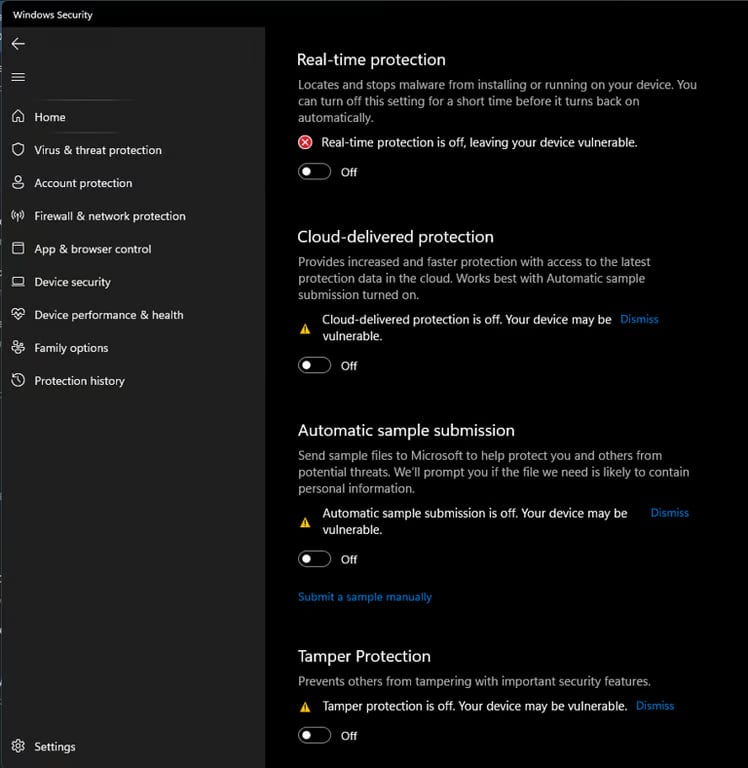
打开 Windows Security(Windows 安全中心)。
选择 Virus & threat protection(病毒和威胁防护)。
在 Virus & threat protection settings(“病毒和威胁防护”设置)下打开 Manage settings(管理设置)。
关闭你的产品所要求的设置,包括:
Real-time protection(实时保护)
Cloud-delivered protection(云提供的保护)
Automatic sample submission(自动提交样本)
Tamper Protection(篡改防护)
警告
电脑重启后,Windows 可能会自动重新启用实时保护。
下载 Defender Control
从 Sordum 官方网站下载 Sordum Defender Control。
如果你还没有解压软件,请下载并安装 WinRAR。
使用 WinRAR 打开下载的 Defender Control 压缩包。
使用以下密码解压压缩包:
sordum
打开解压后的文件夹。
以管理员身份运行 Defender Control。
使用该程序禁用 Microsoft Defender。
重要
请仅从 Sordum 官方网站下载 Defender Control。安全工具可能会对修改 Microsoft Defender 设置的程序发出警告,因此打开文件前请确认来源。
禁用 Windows 防火墙
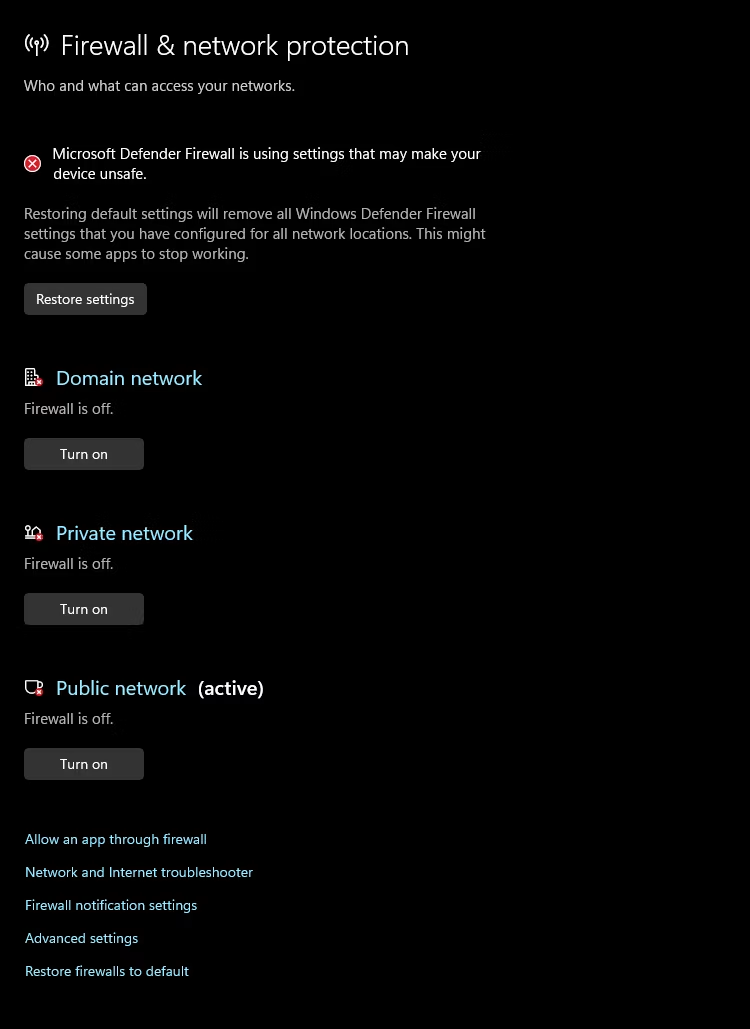
返回 Windows Security(Windows 安全中心)。
打开 Firewall & network protection(防火墙和网络保护)。
依次打开每个可用的网络配置文件:
Domain network(域网络)
Private network(专用网络)
Public network(公用网络)
对你的产品所要求的每个配置文件,关闭 Microsoft Defender Firewall。
警告
禁用 Windows 防火墙会使你的设备更容易受到网络威胁。禁用时间请勿超过必要的时长。
配置攻击防护
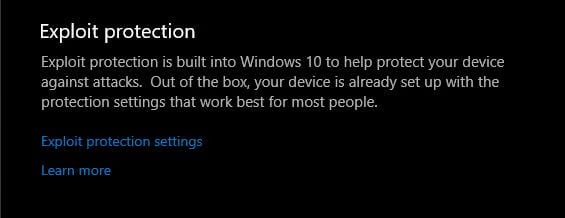
打开 Windows Security(Windows 安全中心)。
选择 App & browser control(应用和浏览器控制)。
向下滚动到 Exploit protection。
点击 Exploit protection settings。
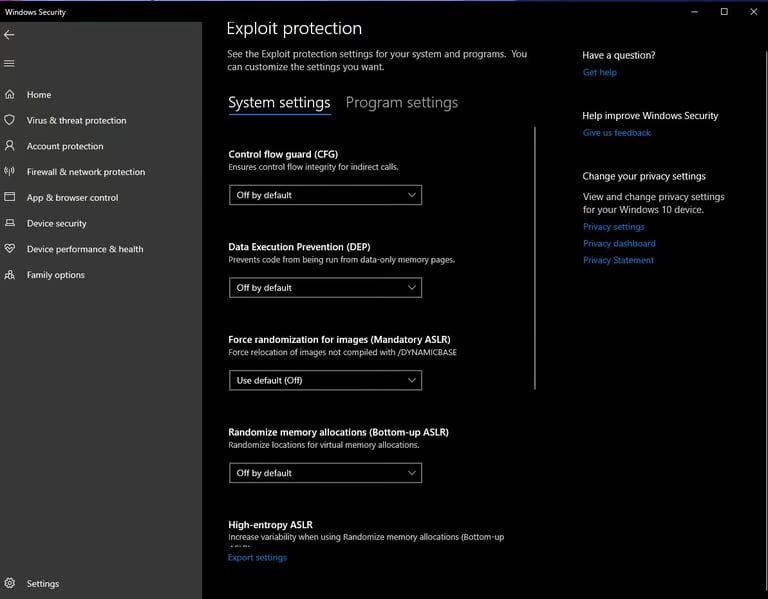
打开 System settings(系统设置)选项卡。
逐项查看列出的防护功能。
仅将你的产品明确要求的设置改为 Off by default。
重要
除非你的具体产品的说明明确要求,否则不要禁用所有攻击防护设置。这些设置可保护 Windows 免受常见的内存类攻击。
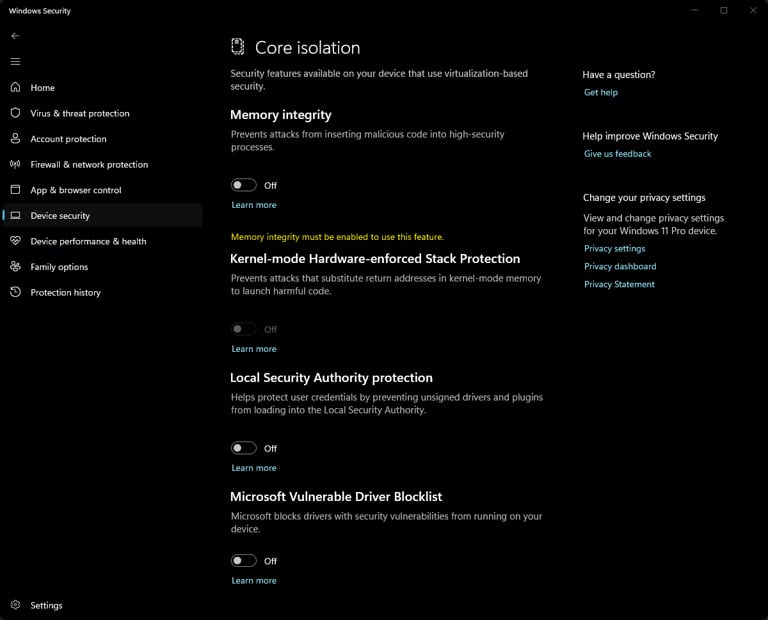
配置内核隔离
返回 Windows Security(Windows 安全中心)。
选择 Device security(设备安全性)。
打开 Core isolation details(内核隔离详细信息)。
仅关闭你的产品所要求的内核隔离设置,例如 Memory integrity(内存完整性)。
如果 Windows 要求重启,请重启电脑。
警告
禁用内存完整性或其他内核隔离功能会降低对恶意内核级驱动的防护。使用软件后请尽可能恢复这些设置。