 Synthera Docs
Следуйте этому руководству только в том случае, если инструкции к продукту требуют отключить функции безопасности Windows.
Важно
Отключение антивируса, брандмауэра, защиты от эксплойтов и функций безопасности устройства снижает защищённость системы. Скачивайте файлы только из официального источника, следуйте требованиям своего конкретного продукта и верните эти параметры, когда они больше не понадобятся.
Отключение защиты от вирусов и угроз
Откройте Windows Security (Безопасность Windows).
Выберите Virus & threat protection (Защита от вирусов и угроз).
Откройте Manage settings (Управление настройками) в разделе Virus & threat protection settings (Параметры защиты от вирусов и других угроз).
Отключите параметры, которых требует ваш продукт, в том числе:
Real-time protection (Защита в режиме реального времени)
Cloud-delivered protection (Облачная защита)
Automatic sample submission (Автоматическая отправка образцов)
Tamper Protection (Защита от подделки)
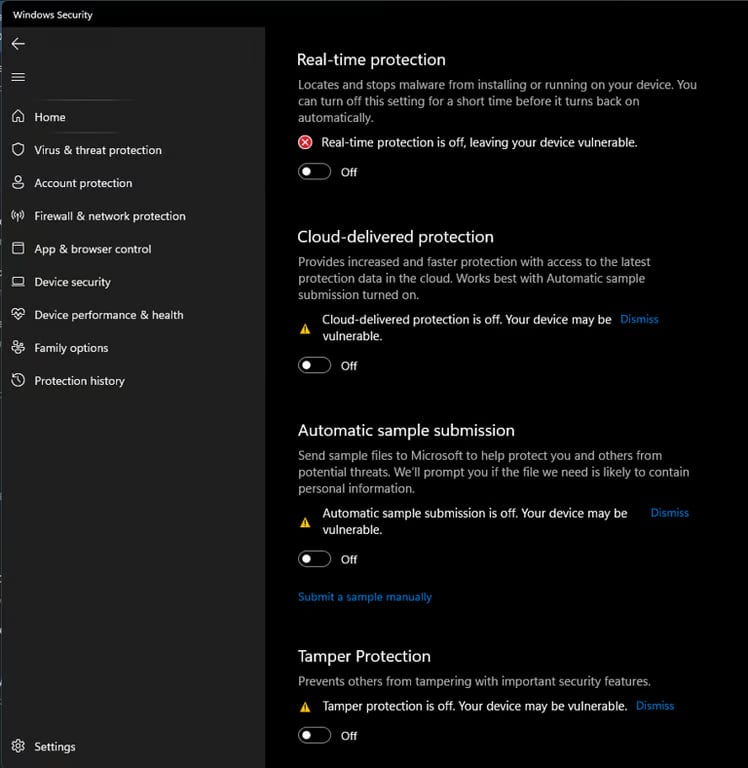
Предупреждение
После перезагрузки компьютера Windows может автоматически снова включить защиту в режиме реального времени.
Загрузка Defender Control
Скачайте Sordum Defender Control с официального сайта Sordum.
Скачайте и установите WinRAR, если у вас ещё нет программы для распаковки архивов.
Откройте скачанный архив Defender Control с помощью WinRAR.
Распакуйте архив, используя следующий пароль:
sordum
Откройте распакованную папку.
Запустите Defender Control от имени администратора.
С помощью программы отключите Microsoft Defender.
Важно
Скачивайте Defender Control только с официального сайта Sordum. Защитные программы могут помечать приложения, изменяющие параметры Microsoft Defender, поэтому проверьте источник, прежде чем открывать файл.
Отключение брандмауэра Windows
Вернитесь в Windows Security (Безопасность Windows).
Откройте Firewall & network protection (Брандмауэр и безопасность сети).
Откройте каждый доступный сетевой профиль:
Domain network (Сеть домена)
Private network (Частная сеть)
Public network (Общедоступная сеть)
Выключите Microsoft Defender Firewall для каждого профиля, которого требует ваш продукт.
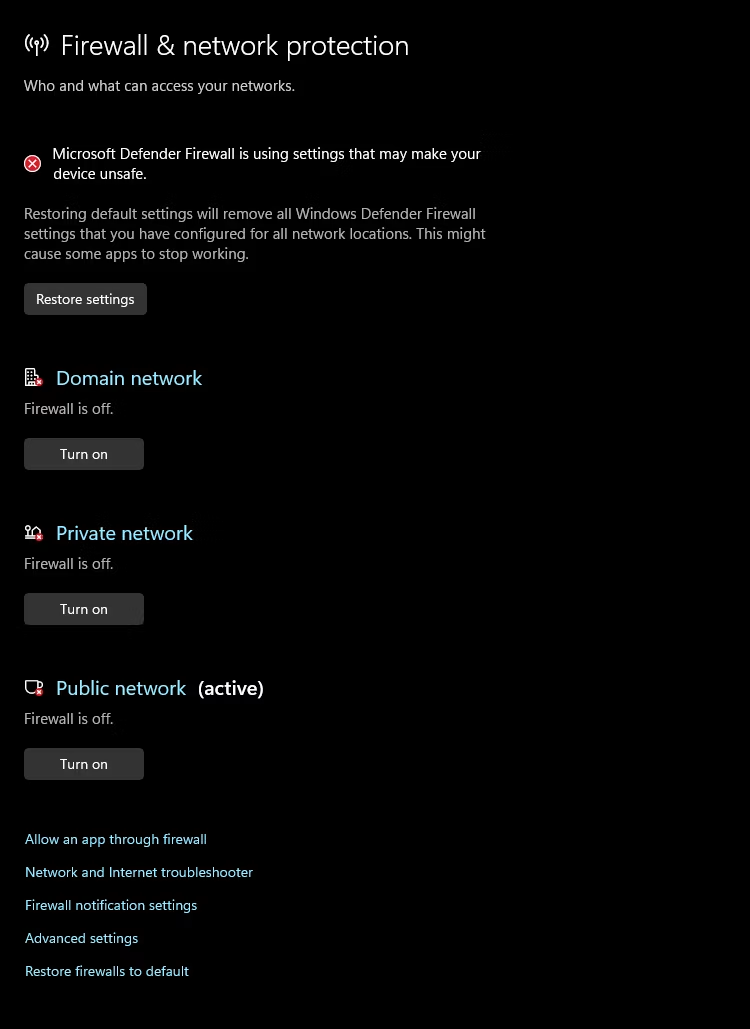
Предупреждение
Отключение брандмауэра Windows делает устройство более доступным для сетевых угроз. Не оставляйте его отключённым дольше необходимого.
Настройка защиты от эксплойтов
Откройте Windows Security (Безопасность Windows).
Выберите App & browser control (Управление приложениями/браузером).
Прокрутите вниз до Exploit protection (Защита от эксплойтов).
Нажмите Exploit protection settings (Параметры защиты от эксплойтов).
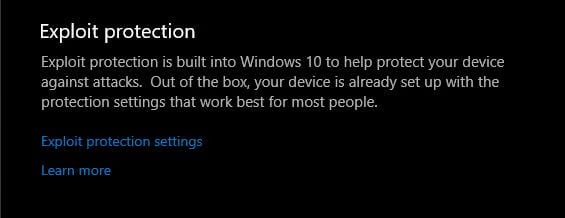
Откройте вкладку System settings (Системные параметры).
Просмотрите перечисленные средства защиты по одному.
Переключите в Off by default только те параметры, которых прямо требует ваш продукт.
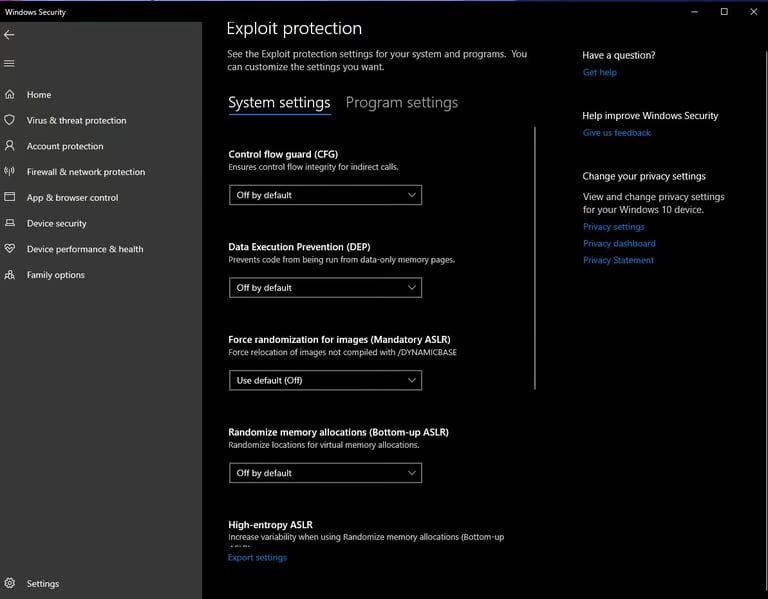
Важно
Не отключайте все параметры защиты от эксплойтов, если этого прямо не требуют инструкции к вашему конкретному продукту. Эти параметры защищают Windows от распространённых атак, связанных с памятью.
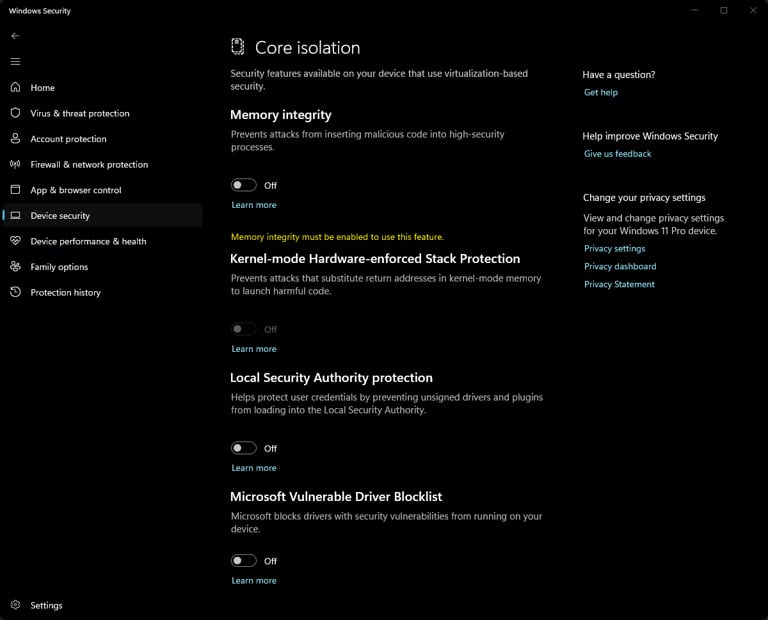
Настройка изоляции ядра
Вернитесь в Windows Security (Безопасность Windows).
Выберите Device security (Безопасность устройства).
Откройте Core isolation details (Сведения об изоляции ядра).
Отключите только те параметры изоляции ядра, которых требует ваш продукт, например Memory integrity (Целостность памяти).
Перезагрузите компьютер, если Windows этого потребует.
Предупреждение
Отключение целостности памяти и других функций изоляции ядра снижает защиту от вредоносных драйверов уровня ядра. По возможности верните эти параметры после использования программы.