 Synthera Docs
Alguns produtos utilizam o SteelSeries Sonar para inicializar o respetivo overlay. Este guia explica como ativar o Sonar e configurar o atalho exigido pelo loader.
Instala o SteelSeries GG
Descarrega o SteelSeries GG a partir do site oficial da SteelSeries:
Abre o instalador descarregado.
Segue as instruções no ecrã para instalar o SteelSeries GG.
Abre a aplicação.
Inicia sessão no SteelSeries GG
Cria uma conta SteelSeries ou inicia sessão numa conta existente.
Conclui a configuração inicial da aplicação.
Ativa o SteelSeries Sonar
Abre o separador Sonar no SteelSeries GG.
Se for a primeira vez que utilizas o Sonar, configura os dispositivos de entrada e de saída pedidos.
Confirma que o Sonar está ativado e que o misturador principal é apresentado.
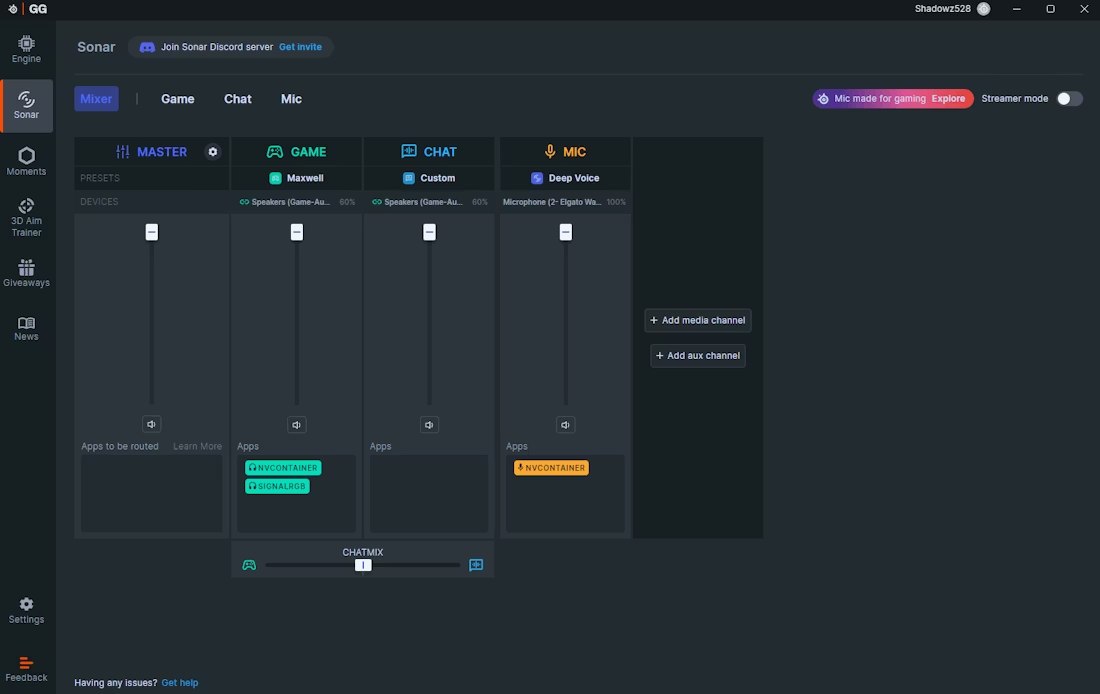
Configura o atalho do Sonar
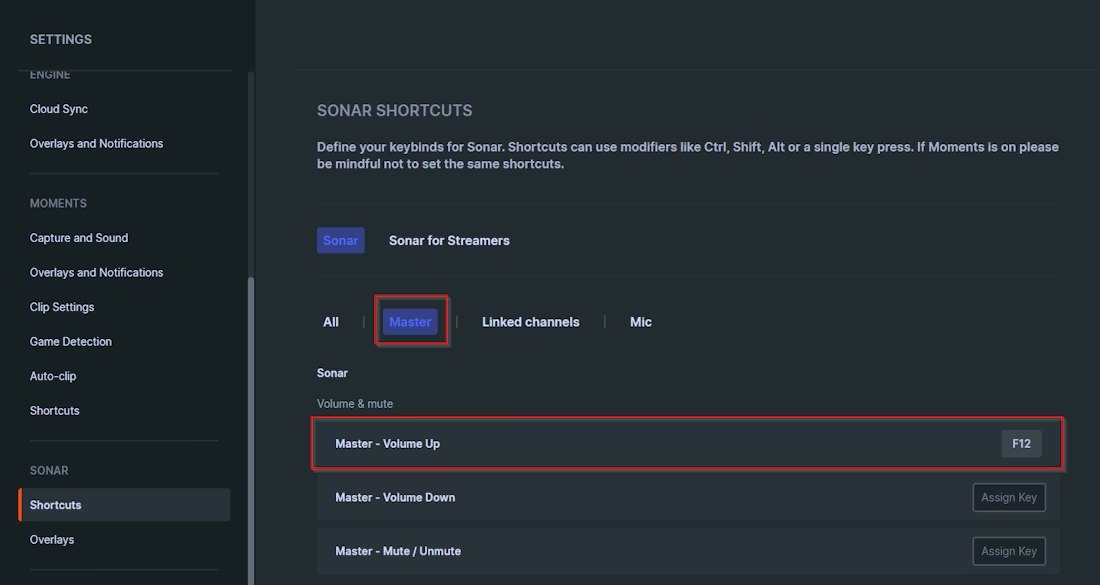
Abre Shortcuts na secção do Sonar.
Seleciona Master.
Localiza Master – Volume Up.
Atribui uma tecla disponível, como F12.
Nota
A tecla atribuída a Master – Volume Up é a tua tecla de atalho do Sonar. Lembra-te da tecla que escolheste, porque tens de a premir antes de clicares em Load no loader do produto.
Inicializa o overlay do SteelSeries Sonar
Mantém o SteelSeries GG aberto e certifica-te de que o Sonar está ativado.
Abre o loader do produto.
Prime uma vez a tua tecla de atalho do Sonar configurada.
Clica em Load no loader.
Importante
Prime a tecla de atalho do Sonar antes de clicares em Load. O SteelSeries GG e o Sonar têm de continuar em execução enquanto o produto é inicializado.