 Synthera Docs
Einige Produkte verwenden SteelSeries Sonar, um ihr Overlay zu initialisieren. Diese Anleitung erklärt, wie du Sonar aktivierst und die Tastenkombination einrichtest, die der Loader benötigt.
SteelSeries GG installieren
Lade SteelSeries GG von der offiziellen SteelSeries-Website herunter:
Öffne das heruntergeladene Installationsprogramm.
Folge den Anweisungen auf dem Bildschirm, um SteelSeries GG zu installieren.
Öffne die Anwendung.
Bei SteelSeries GG anmelden
Erstelle ein SteelSeries-Konto oder melde dich mit einem bestehenden Konto an.
Schließe die Ersteinrichtung der Anwendung ab.
SteelSeries Sonar aktivieren
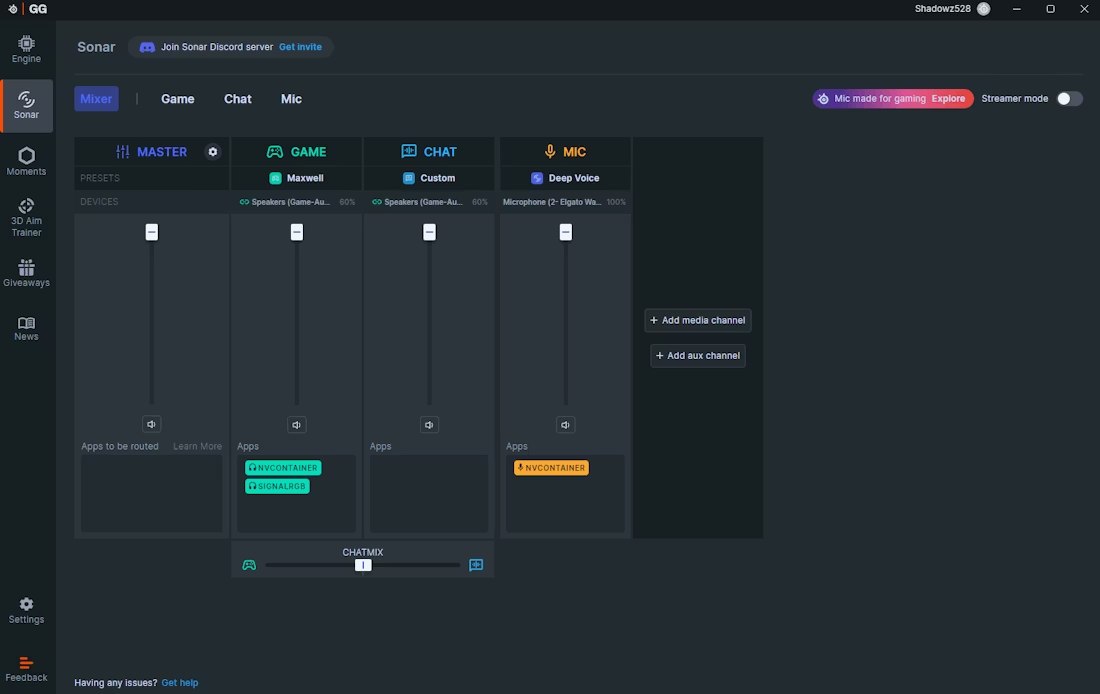
Öffne in SteelSeries GG den Tab Sonar.
Wenn du Sonar zum ersten Mal verwendest, richte die abgefragten Eingabe- und Ausgabegeräte ein.
Prüfe, ob Sonar aktiviert ist und der Hauptmixer angezeigt wird.
Die Sonar-Tastenkombination einrichten
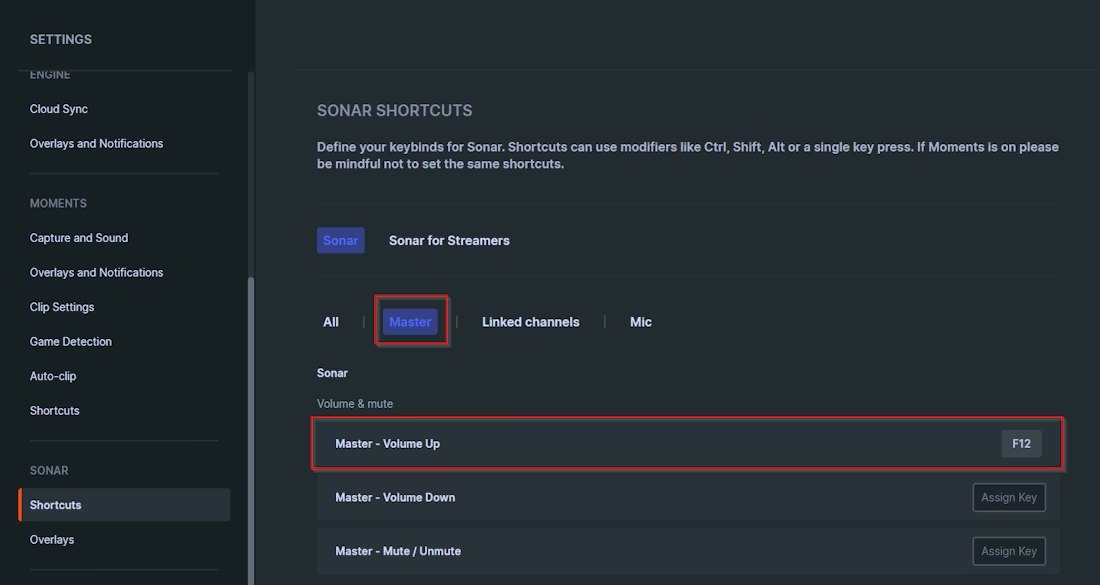
Öffne im Bereich Sonar Shortcuts.
Wähle Master.
Suche Master – Volume Up.
Weise eine freie Taste zu, zum Beispiel F12.
Hinweis
Die Taste, die Master – Volume Up zugewiesen ist, ist deine Sonar-Taste. Merke dir, welche Taste du gewählt hast, denn du musst sie drücken, bevor du im Loader des Produkts auf Load klickst.
Das SteelSeries-Sonar-Overlay initialisieren
Lass SteelSeries GG geöffnet und stelle sicher, dass Sonar aktiviert ist.
Öffne den Loader des Produkts.
Drücke einmal deine eingerichtete Sonar-Taste.
Klicke im Loader auf Load.
Wichtig
Drücke die Sonar-Taste, bevor du auf Load klickst. SteelSeries GG und Sonar müssen weiterlaufen, während das Produkt initialisiert wird.